This article assumes you:
- Have a Tidepool account - If you don't have one, check out Getting Started With Tidepool
If you've forgotten your password, or just want to set a new one, you can reset it from the login page. This works the same way whether you have a Personal account or a Clinician account.
Table of Contents
Before you start
You'll need access to the email address on your Tidepool account, since the reset link is sent by email.
Clicking Forgot your password? from the log in page
Step 1: Go to the login page
Go to the Tidepool login page at app.tidepool.org.
Step 2: Enter your email
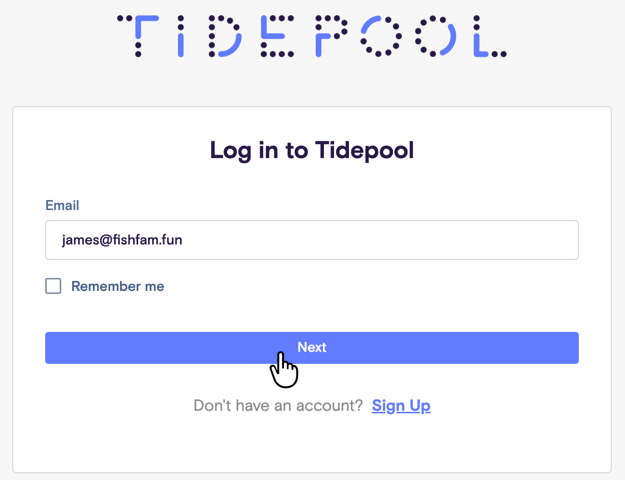
Type the email address on your Tidepool account into the Email field and click Next.
Step 3: Click "Forgot your password?"
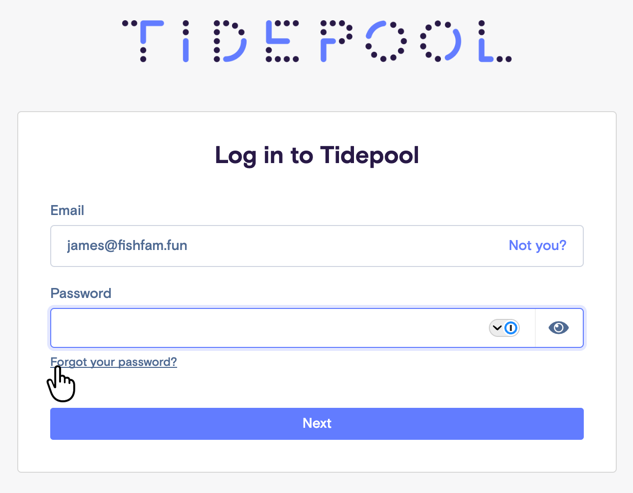
You'll land on the password screen, with your email address shown at the top. Instead of entering your password, click Forgot your password?, located just below the password field.
Step 4: Submit your reset request
On the Forgot Your Password? screen, your email address will already be filled in. Confirm it's correct, then click Submit.
If you'd rather not reset your password right now, click Back in your browser to return to the login screen.
Step 5: Look for the confirmation message
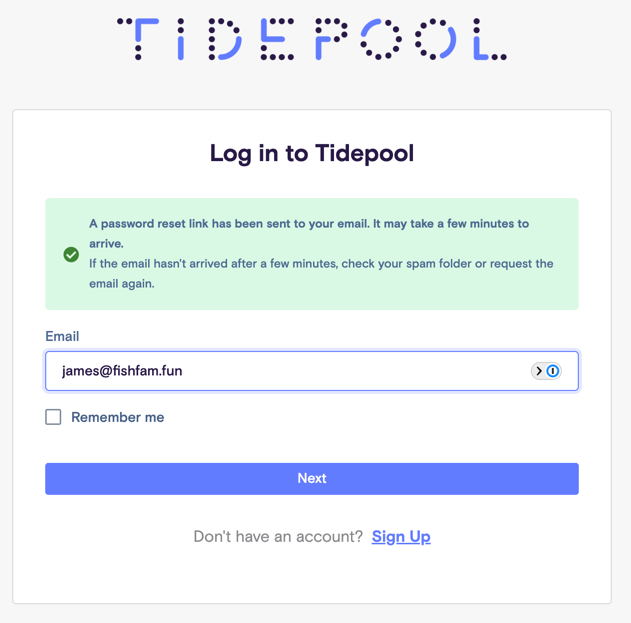
After submitting, you'll be returned to the login page. A green banner will confirm: "A password reset link has been sent to your email."
Step 6: Check your email and set a new password
Open the email account tied to your Tidepool login and look for a password reset email from Tidepool. Click the Reset Password button to go to a page where you can enter and confirm a new password.
If the email doesn't arrive after a few minutes, check your spam or junk folder, and make sure you entered the correct email address in Step 2.
Step 7: Change your password
On the page that opens from the button in your email, enter and confirm a new password. Click Update Password to change the password.
Step 8: Log in with your new password
Your password is now changed. Go to tidepool.org/login or app.tidepool.org to log in with your new password.
Change your password in Account Settings
If you're already logged in and just want to change your password, you can do this directly from your account settings — no need to log out first.
Step 1: Open Account Settings
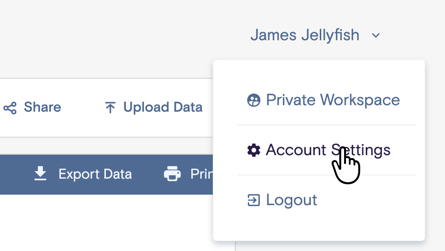
Click your name in the top right of the page, then click Account Settings from the dropdown menu.
Step 2: Click Update Password
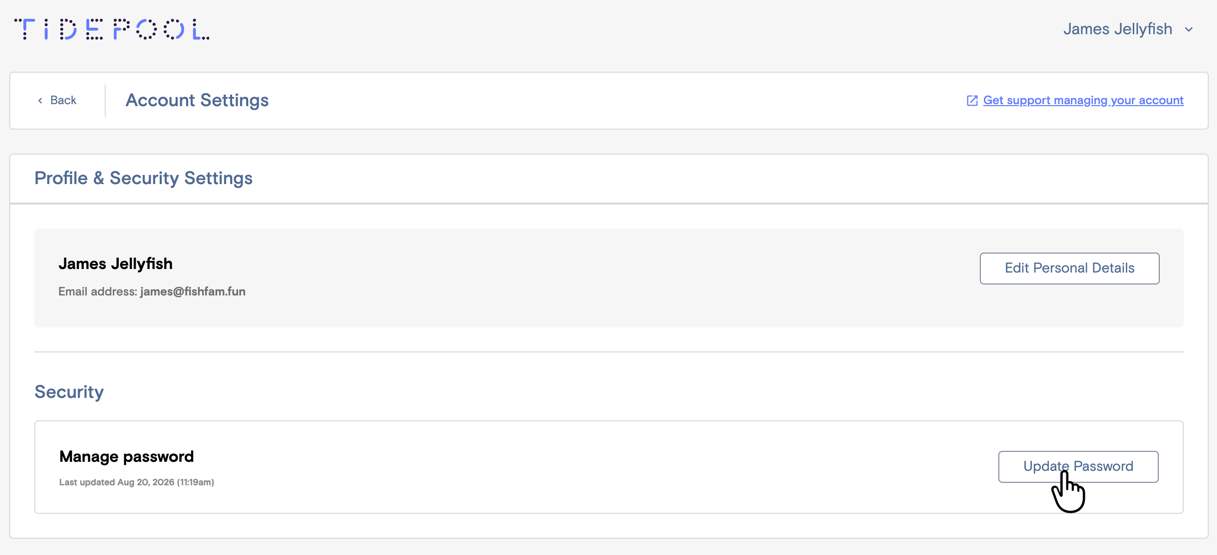
On the Account Settings page, under Security, find Manage password and click Update Password.
Step 3: Enter your new password
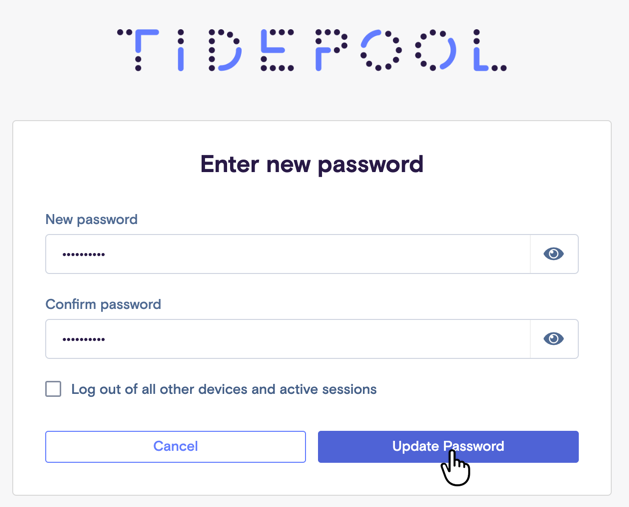
On the Enter new password screen, type your new password into the New password field, then re-enter it in Confirm password.
If you'd like to sign out of Tidepool on all your other devices and browsers, check Log out of all other devices and active sessions.
Click Update Password to save your changes.
Step 4: Look for the confirmation message

You'll see a green confirmation banner: "Password updated. You can now log in using your new password."
If you also use 2FA (only applies to Clinician users)
Resetting your password does not affect two-factor authentication (2FA) on your account. If you have 2FA enabled, you'll still need to complete 2FA with your authenticator app or a recovery code the next time you log in with your new password.
If you're also locked out of your authenticator app and recovery codes, see Lost Authenticator Device or Recovery Codes.
SUP-243